Why does Screenity ask for permissions?
Check system requirements for Screenity. Works on Windows, Mac, Linux with Chrome, Edge, or Chromium browsers.
1 min read•
In order to record your screen, Screenity requires some minimum permissions.
Install permissions
When you first install Screenity from the Chrome store, you will be prompted with this modal:
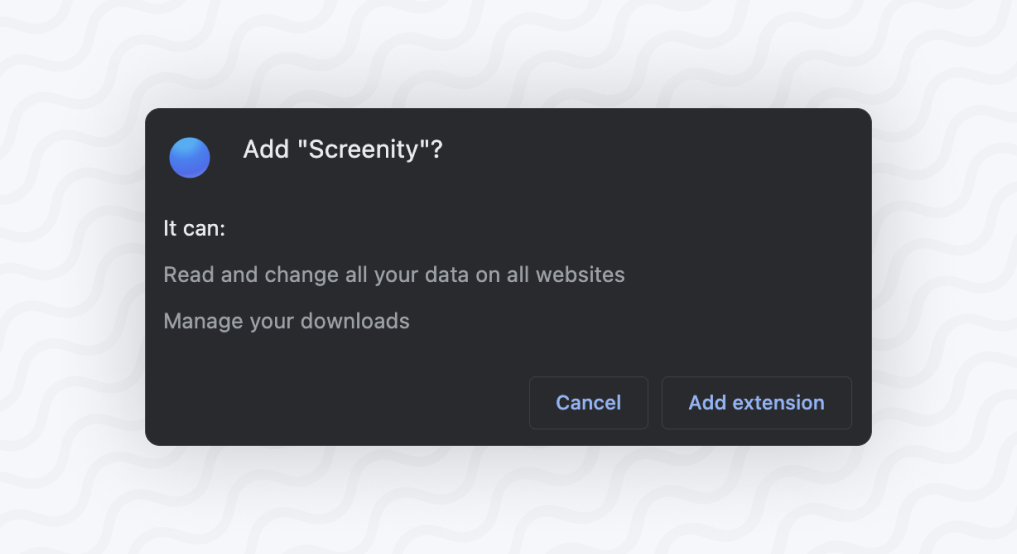
- “Read and change all your data on all websites” is required to be able to show the Screenity popup, toolbar, camera, annotations, and more on the pages you want to record in. We assure you that we respect your privacy and don’t collect any data. It is a common permission requested by many Chrome extension, such as Loom, Screencastify, and more.
- “Manage your downloads” is used to facilitate the process of downloading your videos after recording them with Screenity.
Record permissions
When you click on “Start recording” in the Screenity popup for the first time, you will see this other modal.
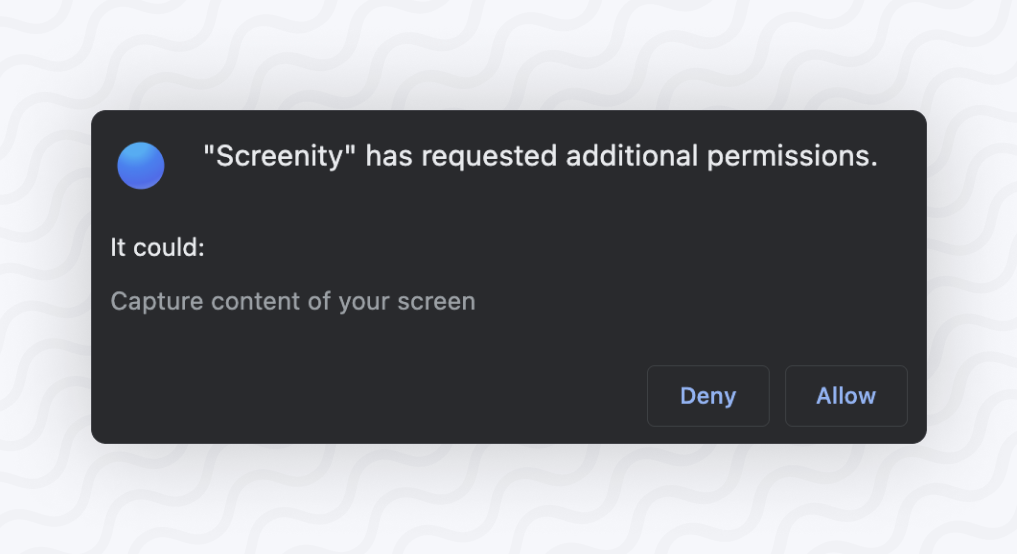
- “Capture content of your screen” is needed for Screenity to be able to record your screen.